BioShell supports two browser-based interactive environments for notebook and script-based work. Both run on your BioShell instance and are accessible through your browser once you have connected via SSH.
JupyterLab
JupyterLab is a browser-based environment for writing and running Python, R, and shell notebooks. It is well suited to exploratory analysis, visualisation, and combining code with documentation.
Load the Jupyter module:
module load jupyter
Start the notebook server, binding it to your instance’s IP address:
IP=$(hostname -I | awk '{print $1}')
jupyter notebook --ip=$IP
This starts the server and prints its connection details in the terminal:
[I 06:38:56.767 NotebookApp] Writing notebook server cookie secret to /home/<username>/.local/share/jupyter/runtime/notebook_cookie_secret
[I 06:38:57.048 NotebookApp] Serving notebooks from local directory: /home/<username>
[I 06:38:57.048 NotebookApp] Jupyter Notebook 6.4.12 is running at:
[I 06:38:57.048 NotebookApp] http://<your-bioshell-ip>:8888/?token=<token>
[I 06:38:57.048 NotebookApp]  or http://127.0.0.1:8888/?token=<token>
[I 06:38:57.048 NotebookApp] Use Control-C to stop this server and shut down all kernels (twice to skip confirmation).
[W 06:38:57.051 NotebookApp] No web browser found: could not locate runnable browser.
[C 06:38:57.051 NotebookApp]

    To access the notebook, open this file in a browser:
        file:///home/<username>/.local/share/jupyter/runtime/nbserver-30866-open.html
    Or copy and paste one of these URLs:
        http://<your-bioshell-ip>:8888/?token=<token>
     or http://127.0.0.1:8888/?token=<token>
Open JupyterLab in your browser:
Two URLs are printed. Select the first one, the one with your instance’s IP address, not the
127.0.0.1 one, which only works from a browser running on the instance itself. Copy the
whole URL, including the ?token= value, into your browser:
http://<your-bioshell-ip>:8888/?token=<token>
?token= value, or copy it incorrectly, you will land on a page asking for a password or token instead of JupyterLab.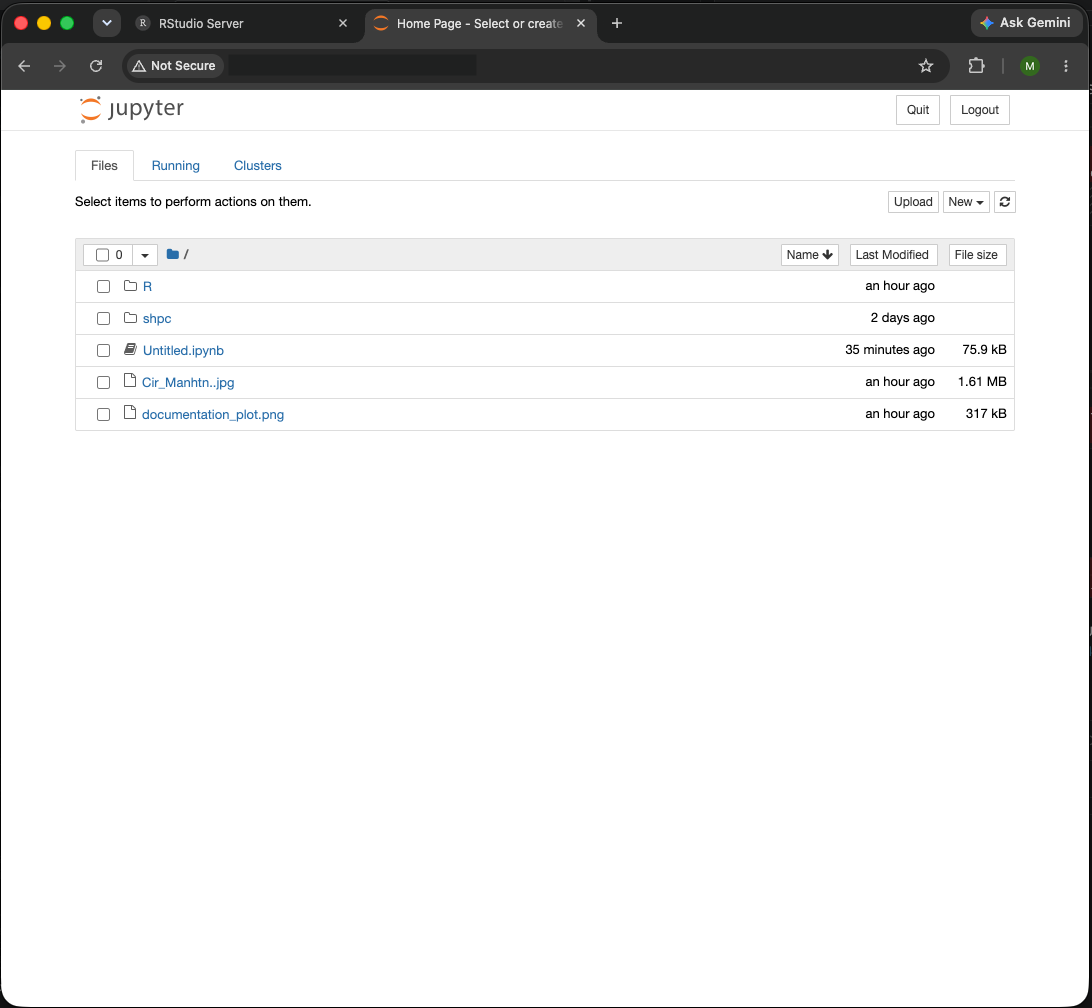
The JupyterLab file browser. Navigate your folders and files, or start a new notebook from here.
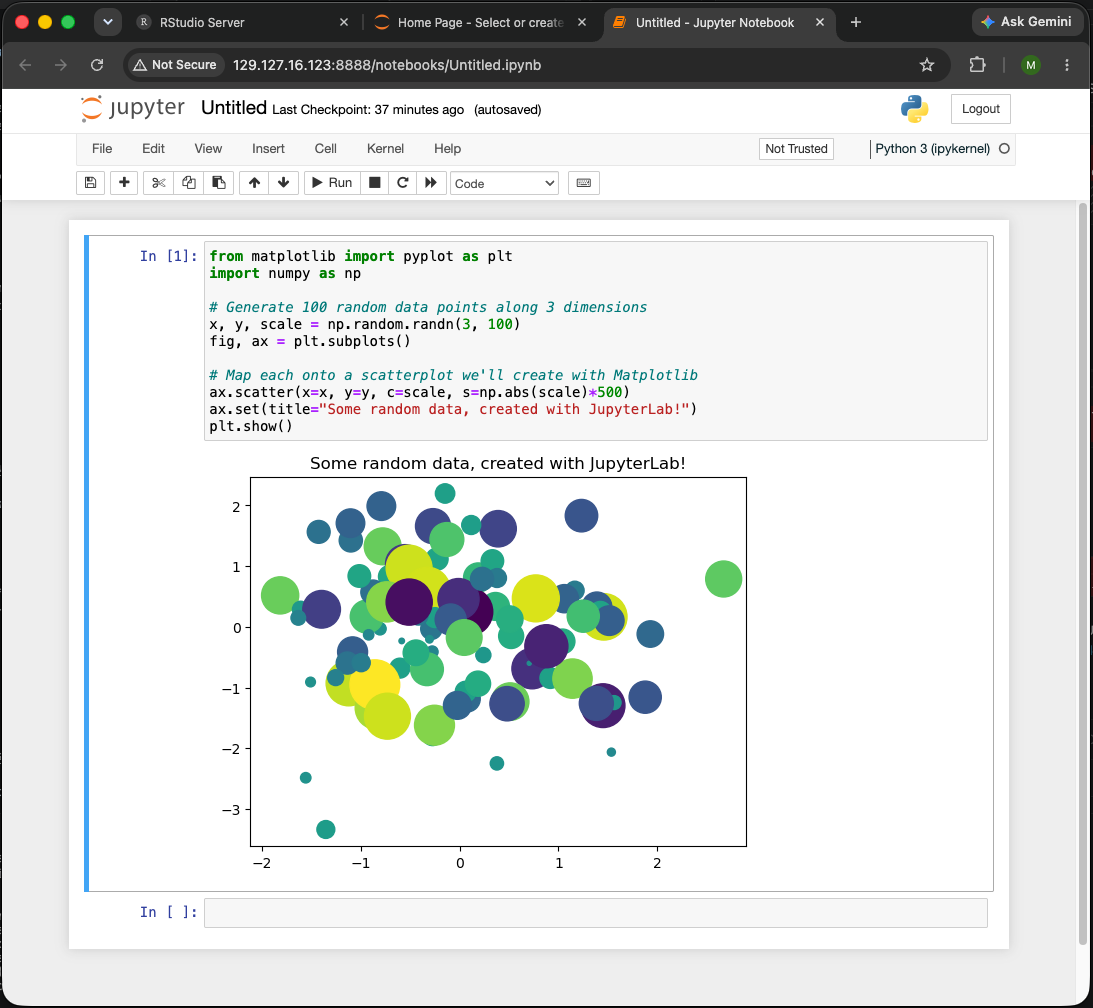
A Jupyter notebook. Run your Python code and view visualisations here.
RStudio
RStudio is a browser-based environment for R-based analysis. If you are familiar with the RStudio desktop application, the browser version works in exactly the same way.
Load the RStudio module:
module load rstudio
Loading the module prints your login details and the steps to start the server:
RStudio Server
----------------------------------
Login Details:
  Username: <username>
  Password: Your Linux account password
If you have not set a password yet, run:
  sudo passwd <username>
To start RStudio Server:
  sudo rstudio-server start
Then open in your browser:
  http://<your-bioshell-ip>:8787
Set a password for your account (first time only):
RStudio Server logs you in with your Linux account password. If you have not set one yet, set it now, you will need it to log in from your browser:
sudo passwd <username>
You will be prompted to enter and confirm a new password.
Start RStudio Server:
sudo rstudio-server start
This prints a message about its logging setup:
TTY detected. Printing informational message about logging configuration.
Logging configuration loaded from '/etc/rstudio/logging.conf'.
Logging to '/var/log/rstudio/rstudio-server/rserver.log'.
Open RStudio in your browser and log in:
Go to:
http://<your-bioshell-ip>:8787
Log in using your username and the password you set above.
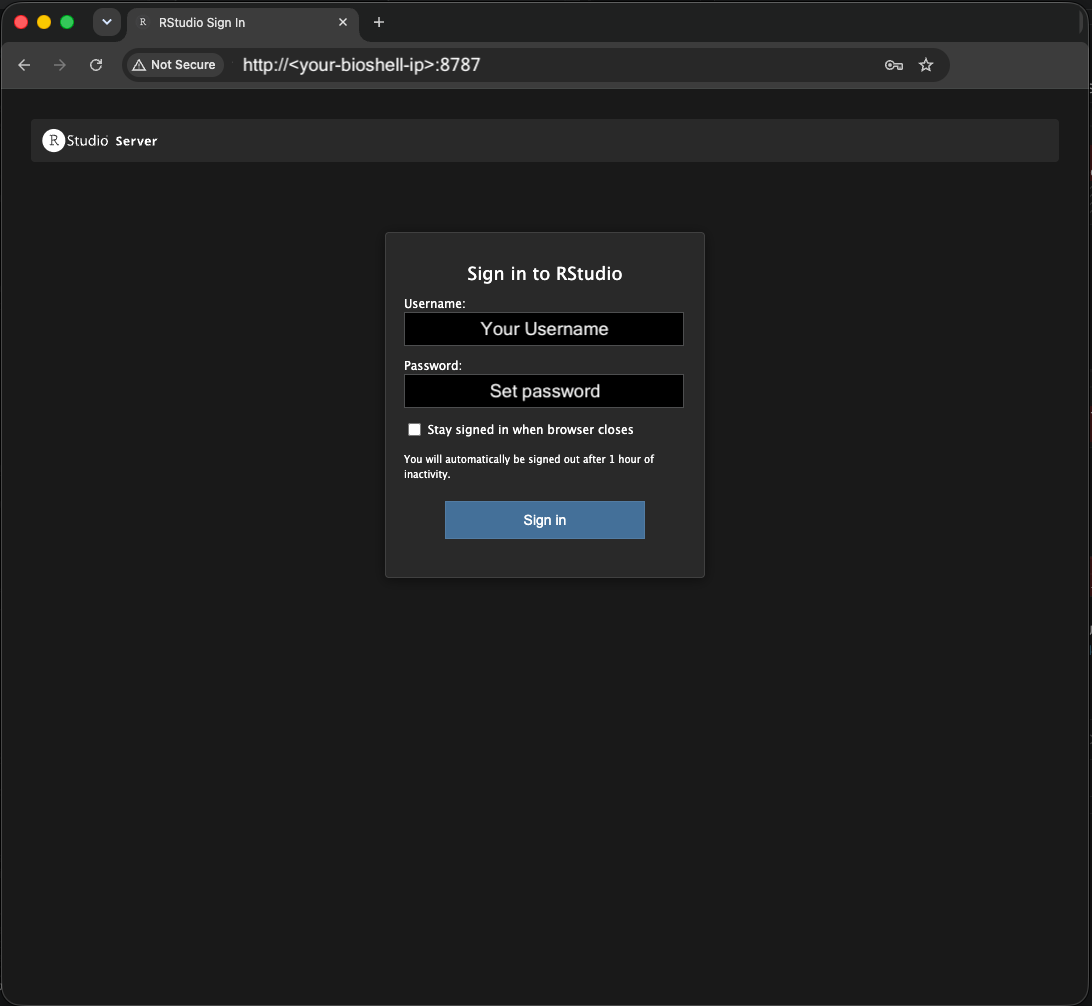
RStudio Server login screen.
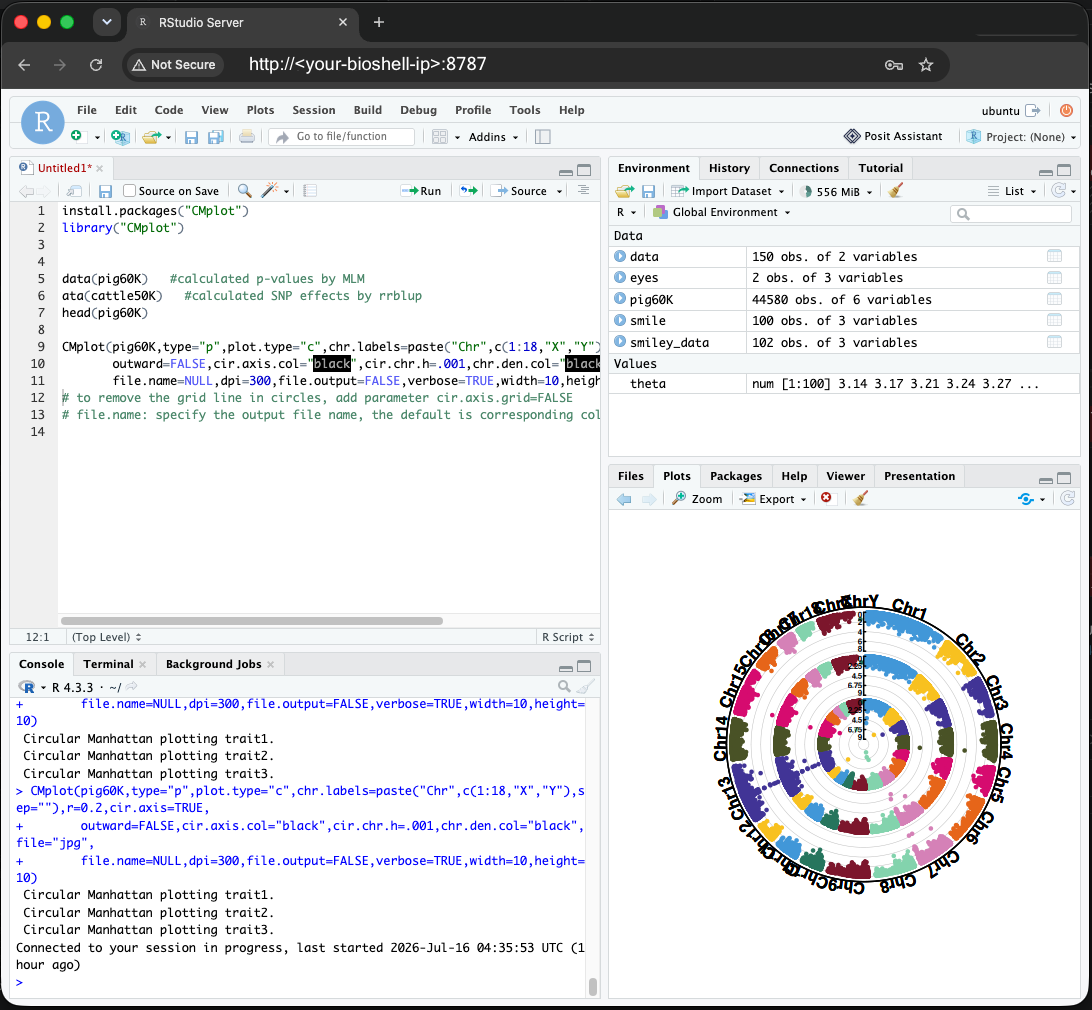
RStudio open in a browser connected to a BioShell instance.
module load in your terminal is also available inside JupyterLab and RStudio.